 Katofli
Clock
Settings → Modules → Clock
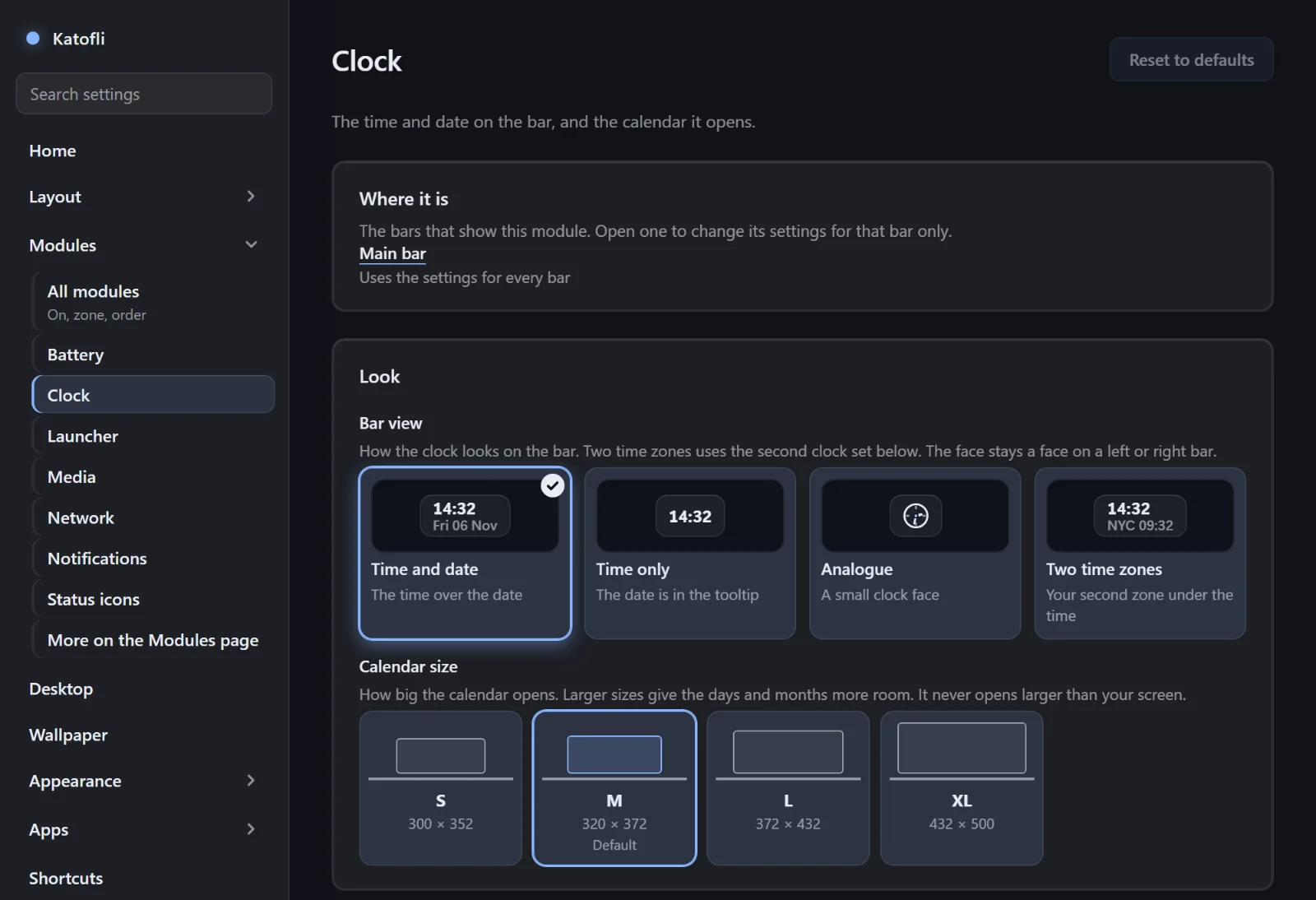
Use this page to choose how the clock looks on the bar, which format it uses and what the calendar shows. You can also add a second time zone to the clock's tooltip and the calendar.
Reset to defaults. A button next to the page title. It puts every setting on this page back to its default after you confirm with Reset. Everything else in your config file, comments included, stays as it is. It is greyed out when every setting is already at its default.
While the clock is off, a notice under Where it is says it isn't on the bar. Its settings still save and apply when you turn it on. Select Turn on to put it back on the bar, or Modules to open the Modules page.
Where it is
Lists the bars that show the clock. Open a bar from the list to change the clock's settings for that bar only. Each bar says Uses the settings for every bar, or how many settings differ on it and how many extra copies it holds. If no bar shows the clock, the card says No bar shows this module right now.
Note: the page you open from this list is titled "Clock on {bar name}". There, turn on Customise for this bar and the settings you change apply to that bar only (Config: the bar's [modules.clock.options] table). Reset to defaults for this bar puts that bar back on the settings for every bar.
Look
Bar view. How the clock looks on the bar, chosen from thumbnails. Two time zones uses the second clock you set under Second time zone. The face stays a face on a left or right bar. Default: Time and date. Choices: Time and date (two-line), Time only (time-only), Analogue (analogue), Two time zones (dual-zone). Takes effect at once. Config: [clock] view.
Calendar size. How big the calendar opens. Larger sizes give the days and months more room. It never opens larger than your screen. Default: Medium. Choices: Small, Medium, Large, Extra large (s, m, l, xl). Takes effect at once. Config: [clock] popup-size.
Display
Show seconds. Adds seconds to the clock. The clock then redraws every second instead of once a minute. Default: off. Takes effect at once. Config: [clock] show-seconds.
Note: with the Custom format and a valid pattern, the pattern decides this and the box is greyed out ("Set by the pattern.").
Show the date. Shows the date under the time. Default: on. Takes effect at once. Config: [clock] show-date.
Note: greyed out with a valid custom pattern, as above.
Format. The time and date format. A line under the choices explains the one you picked and shows a sample. Default: System. Choices: System (your region's hour format, with a short weekday and month), 24-hour, 12-hour (with AM and PM), Compact (no leading zero on the hour, a numeric day and month), Custom (your own pattern). Takes effect at once. Config: [clock] format.
Custom pattern. Shown only when Format is Custom. Your own pattern, up to 64 characters. It replaces both lines of the clock, so put the date in it if you want one. A preview shows the pattern with the current time; an invalid pattern shows an error instead and is not saved. Default: empty, with ddd D MMM HH:mm as the example. Takes effect when you leave the field. Config: [clock] pattern.
Note: the tokens are listed under the field: HH:mm (24-hour time), h:mm A (12-hour time), ss (seconds), ddd / dddd (weekday), D / DD (day), MMM / MMMM / MM (month), YYYY (year), W (ISO week) and [text] (plain text).
Calendar
Show week numbers. Adds week numbers to the calendar that opens when you click the clock. They are ISO weeks: they start on Monday, and week 1 holds the first Thursday of the year. Default: off. Takes effect at once. Config: [clock] week-numbers.
Second time zone
A second clock in the clock's tooltip and at the top of the calendar.
Second clock's time zone. The zone of the second clock, such as Europe/London. Start typing to pick from the list of zone names. Leave it empty to turn the second clock off. An unknown name shows "Unknown time zone" and is not saved. Default: empty. Takes effect when you leave the field. Config: [clock] second-zone.
Second clock's name. The second clock's name, up to 32 characters. Left empty, it shows the zone's city. A preview under the fields shows the second clock as it will appear. Default: empty. Takes effect when you leave the field. Config: [clock] second-zone-label.
Common tasks
- To show seconds: turn on Show seconds under Display.
- To use your own layout, such as
ddd D MMM HH:mm: set Format to Custom and type the pattern in Custom pattern. - To show a second city: type its zone in Second clock's time zone under Second time zone, then pick Two time zones under Bar view to show it on the bar too.
- To give one bar a different clock: open that bar under Where it is, turn on Customise for this bar and change the settings there.