 Katofli
The game bar
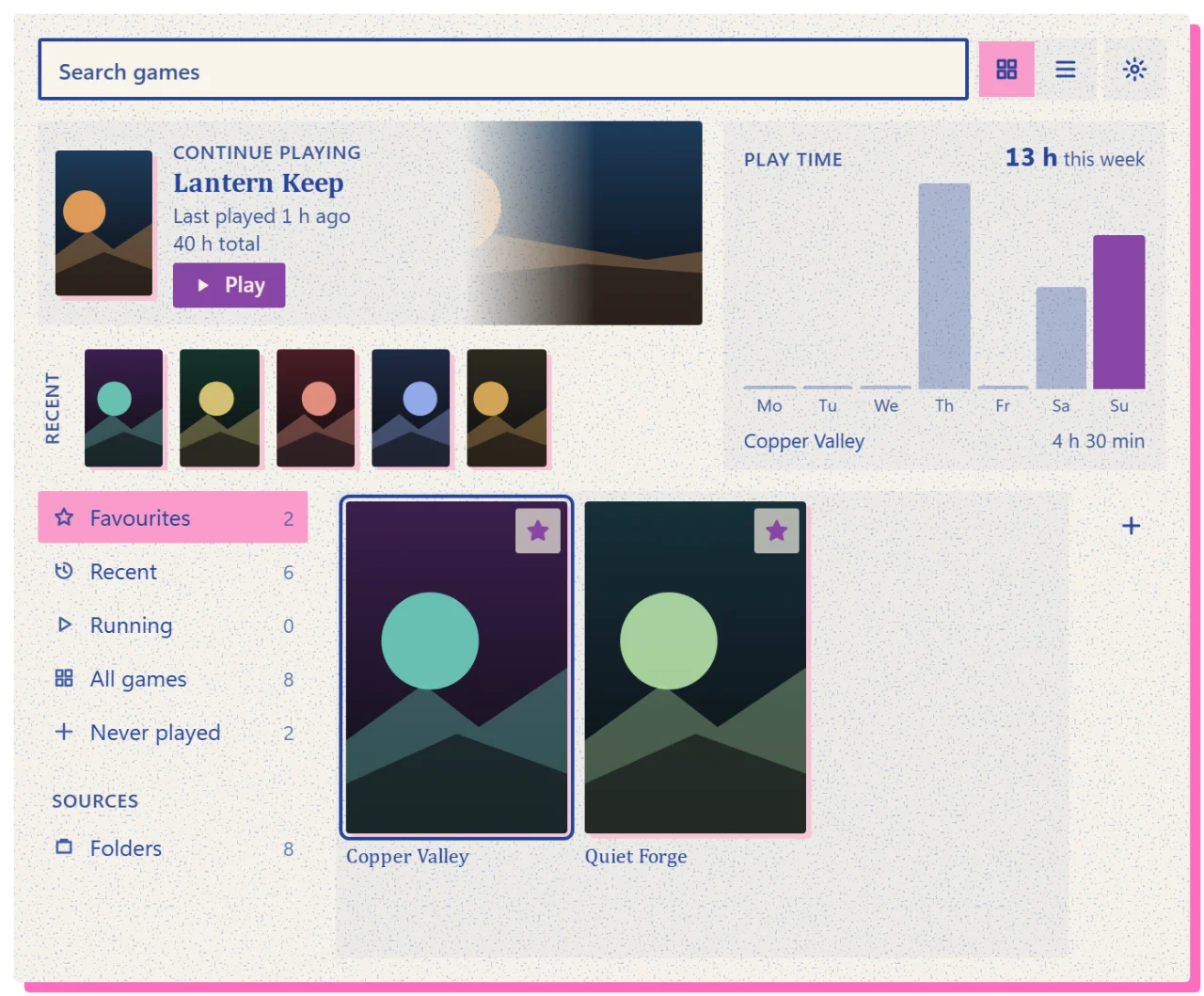
The game bar gathers your installed games from several launchers and your own folders into one place on the bar, with covers, recent games, play time and the tools you run beside a game. It is off by default; nothing is scanned until you turn it on. Its settings are on Settings → Modules → Game bar.
Turn it on
- Open Settings → Modules → Gallery.
- Press Add on Game bar. It sits in the bar's start group and stays on the main bar.
Where games come from
Settings → Modules → Game bar → Sources lists each source with how many games it found, and a switch for each (all on by default): Steam, Epic Games, GOG, Heroic, Ubisoft Connect, Xbox and Microsoft Store games, Game folders and Games you added. Rescan all looks again.
Add a folder of games
Settings → Modules → Game bar → Your game folders → Add folder…. Each game should have its own folder inside it. Depth is how many folder levels down Katofli looks: 2 (the default) finds games inside publisher folders; at most 6. Only the folder you add is watched; games added deeper show up on the next rescan.
If Katofli is not sure which program starts a game, the page says "N games need you to choose their program". Pick the right one with Use this or Pick exe….
Add any program as a game
Settings → Modules → Game bar → Games you added → Add a game…: choose the Program, then optionally a Name, Arguments and Start in folder.
Pick a layout
Settings → Modules → Game bar → Look → Layout:
- Pop-up grid or Pop-up list: a pop-up by the bar. Unset, the theme picks one.
- Library: fills the screen beside the bar with big covers, filters (All, Installed, Recently played, Favourites, a store) and sorting. While a game runs, the library opens as the pop-up instead, to leave the game its memory.
- Shelf: one row of covers along the bar, the running game and your most recent first.
- Search: a centred box for games and companion tools.
Pop-up size on the same tab sets the size: S, M, L (default) or XL.
Every layout works from the keyboard: arrows move, Enter plays, typing searches, Esc closes. Right-click a game for its menu: Play, launch profile, favourites, install folder, Hide, and the store page for Steam games.
What the chip shows
Settings → Modules → Game bar → Look → Bar view: a gamepad icon (default), the running game's cover, name and session time, a compact cover and time, or the cover of the last game you played.
Home area, recent games and play time
The pop-up opens on a home area. To turn parts of it off: Settings → Modules → Game bar → Pop-up sections:
- Show the home area: off opens straight into the list.
- Continue playing: a large card for your last game with a Play button. While a game runs it shows the session time and its tools.
- Recent games: covers of up to five recent games.
- Play time: this week's play time, a seven-day chart and your three most played games.
- Keep track of play time: adds up how long each game runs, on this PC only. Off, nothing new is recorded.
Play time counts only time the PC was awake while a game ran, however the game was started. Times from the launchers themselves are not imported.
Favourites and hidden games
Click the star on a game to make it a favourite. Choose Hide in a game's menu to hide it. To bring it back: Settings → Modules → Game bar → Hidden games → Unhide.
Companion tools and launch profiles
Tools such as an overlay, a voice chat app or a trainer can sit in the game bar's utilities strip, and a game's launch profile can start them with it. Settings → Modules → Game bar → Utilities & launch profiles:
- Detected lists tools found on this PC. Add puts one in the strip, Dismiss stops suggesting it.
- A tool can run as administrator (one system prompt each time). Games never run as administrator.
- Launch profiles: choose a game, then the tools to start with it, before the game or once it is detected, with an optional delay, and whether to close them when the game exits. You can also drag a tool from the strip onto a game.
At most 32 tools, and 8 tools per profile.
Covers from the internet
Covers come from the launchers' own files first. Two switches on Settings → Modules → Game bar → Sources, both on by default, fill the gaps:
- Download missing covers from GOG: for GOG games with no cover on this PC. Only the GOG game id is sent, and only to GOG. With this off, the game bar makes no network requests at all.
- Find covers for folder and manual games by name: sends game names to Steam and GOG search. A cover is only used when the match is clear. It works only while the first switch is on.
See PRIVACY.md.
Limits
- No gamepad support yet; the layouts work with keyboard and mouse.
- The store page opens for Steam games only.
- The game bar stays on the main bar; an extra bar cannot host it.
Every control on the matching Settings pages: Game bar.